
How to Migrate Your Existing Phone Number to the WhatsApp Business API
You can easily port the phone number your customers already know to the WhatsApp Business API. Your migration steps depend on where the number is currently registered: on the WhatsApp Business app, on personal consumer WhatsApp, or with another BSP provider. Pick your pathway below to preserve your number and chats.
Which Path Is Yours?
Review how your current app setup determines phone app usage and chat history options before connecting.
Migration Decision Diagram
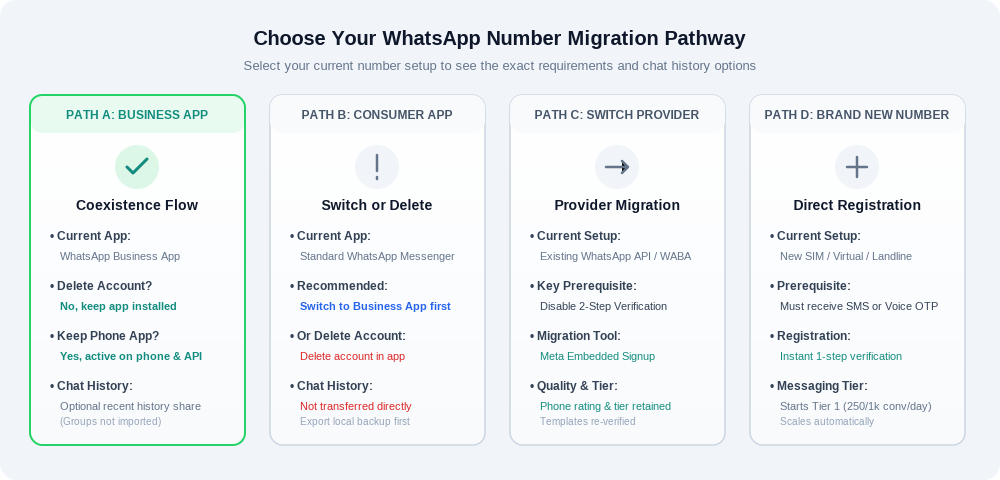
Path A: Number on the WhatsApp Business App
If your number is currently active on the official WhatsApp Business app (version 2.24.17 or higher), you can connect it to CampaigningTool using Meta's official coexistence feature without deleting your account or losing your number.
See throughput limits, chat mirroring rules, and UI screenshots in our dedicated feature guide.
Keep the primary phone active and app updated
Ensure your WhatsApp Business app is version 2.24.17 or higher. Your primary phone must remain active; Meta can automatically disconnect the API link if the primary device is inactive for about 14 days.
Log in to CampaigningTool and initiate connection
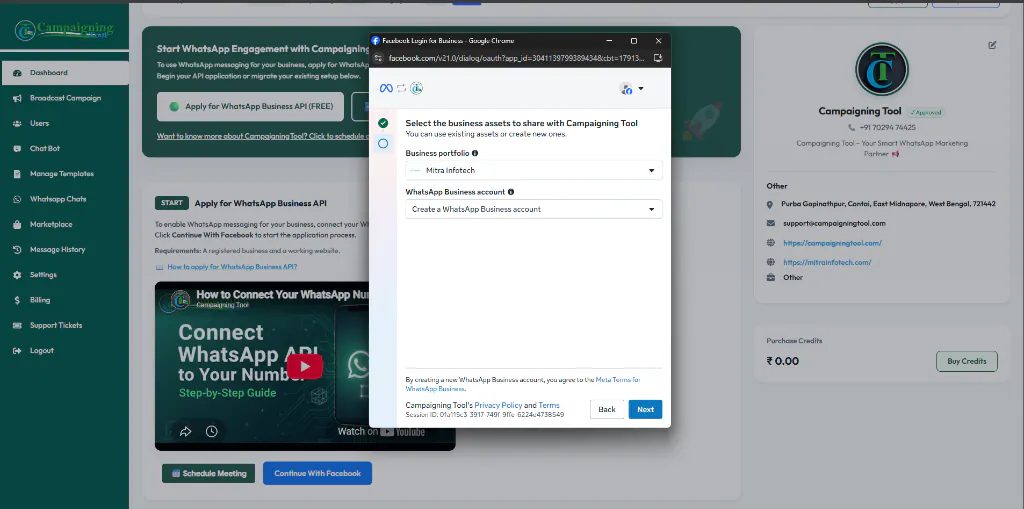
Log in to your CampaigningTool console, go to Settings → Channels, and choose to connect your existing WhatsApp Business app number via Meta Embedded Signup v4.
Enter phone number and copy verification code
Enter your number in the setup flow. WhatsApp displays an official verification code, which you copy to your clipboard.
Open your Business app and tap Connect
Open your WhatsApp Business app. You will receive a message from the official Facebook Business Account. Tap Connect, then Connect to the Business Platform.
Choose whether to share chat history and paste code
Tap Confirm in the app to let CampaigningTool import up to the last 6 months of one-to-one chats. Paste the code into signup to complete onboarding. Meta allows up to 24 hours to synchronize history. Keep the Business app open while it runs.
Start using both phone app and CampaigningTool
Your number is connected. You answer one-to-one in the app, while your team runs broadcasts and AI agents in CampaigningTool with mirrored chats. Full details are on our WhatsApp coexistence guide.
Path B: Number on the Regular WhatsApp App
If your number is on standard WhatsApp Messenger (the personal consumer app), you cannot use direct coexistence immediately. Follow these steps:
Back up your chats
Export vital chat transcripts or media files from your phone. Chats are not transferred directly to the API if you delete the consumer account.
Choose your route: Switch to Business App or Delete Account
Route 1 (Recommended): Install the WhatsApp Business app on your phone and convert your personal account to a Business account. Once converted, follow Path A for coexistence.
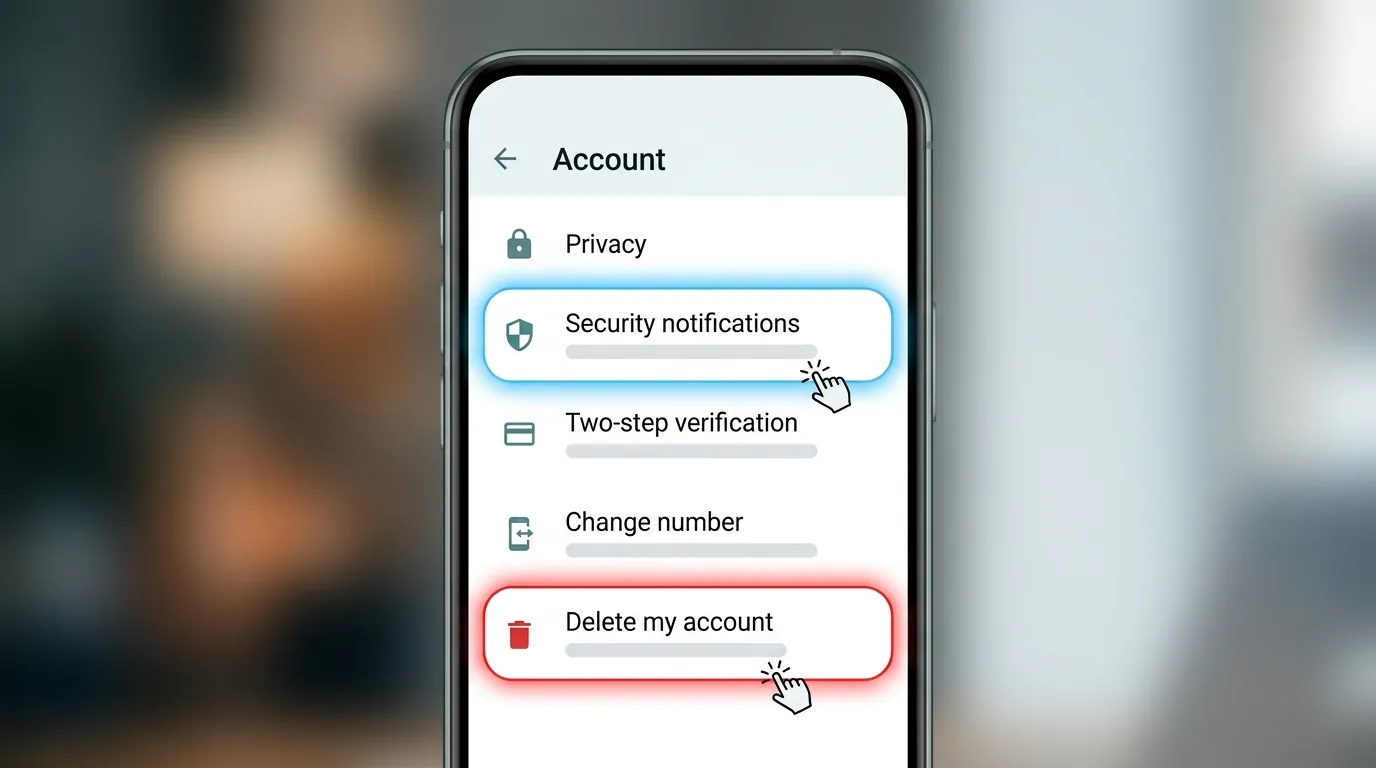
Route 2 (API-Only): Open WhatsApp on your phone → Settings → Account → tap Delete my account. (Note: Simply uninstalling the app is not enough; the account must be deleted to release the number for API registration.)
Initiate Meta Embedded Signup in CampaigningTool
Log in to your CampaigningTool console, choose Connect Number, and select Meta Embedded Signup.
Verify via 6-digit SMS or Voice OTP
Enter your phone number and submit the 6-digit verification code sent via SMS or automated phone call to complete Cloud API activation.
Path C: Number with Another Provider (Switching BSP)
If your phone number is already registered on the WhatsApp Business API with another Business Solution Provider (such as Twilio, Wati, Gupshup, or AiSensy), you can seamlessly migrate it to CampaigningTool:
- Disable Two-Step Verification: Log into your current BSP dashboard or Meta Business Manager and disable two-step verification PIN on the phone number.
- Connect in CampaigningTool: Launch Meta Embedded Signup in CampaigningTool and select your existing Meta Business Account and WhatsApp Business Account (WABA).
- Retain Tier & Rating: Your phone number's quality rating, messaging limit tier (Tier 1/2/3/Unlimited), and official verified name will automatically transfer over.
Requirements Before You Start
Ensure you have the following prerequisites ready before starting your registration:
Active Phone Number
Able to receive SMS or voice calls worldwide, and not blocked or flagged by Meta.
Meta Business Account
An active Meta Business Manager. Business verification helps unlock higher messaging limits.
Admin Access
Full administrative control of the phone device and the WhatsApp Business app if using coexistence.
Chat History Plan
Local export or coexistence history sharing enabled for recent 1-on-1 messages.
For a complete technical compliance checklist, see our dedicated WhatsApp Business API Requirements Guide.
What Happens After You Connect
Once your number is connected to CampaigningTool via the official Meta Cloud API:
- High-Speed Messaging: Your number is enabled for automated campaigns, bulk broadcasts, AI agents, and multi-user shared team inboxes.
- Messaging Limits: Brand new API numbers begin with Meta's Tier 1 messaging tier (typically 250 to 1,000 business-initiated conversations per 24 hours), which scales automatically to 10k, 100k, and unlimited as you maintain high phone quality.
- Template Approvals: Outbound broadcasts require Meta-approved message templates. You can submit templates directly from our Template Library.
- Blue Tick Verification: Official Meta verification (the blue checkmark badge) is not added automatically on registration. You can apply for verification in your Meta Business Manager after connecting — see our guide on WhatsApp blue tick verification.
Using an Existing Number on the WhatsApp API: Frequently Asked Questions
Everything you need to know about coexistence, chat preservation, and provider switching.
Often yes. Numbers on the WhatsApp Business app can usually be connected without deleting the app account, and numbers on the regular WhatsApp app must first be moved or deleted. Your number must also meet Meta's requirements.
Yes, with coexistence, as long as the number is on the WhatsApp Business app and you keep the app installed.
It depends on your path. With the Business app and coexistence you can share recent chat history. If you delete a regular WhatsApp account, your chats aren't transferred, so back them up first.
Not if your number is on the WhatsApp Business app and you use coexistence. For numbers on the regular WhatsApp app, you either switch to the Business app first or delete the account.
Usually yes, after you disable two-step verification with your current provider. We can walk you through it.
Connecting a number is often quick, but verification and Meta's checks can take longer. We can't promise a time.
No. The tick is a separate request that Meta reviews. See blue tick verification.
You can disconnect it later, but you should check what happens to your chats and messaging history before you do.
Need Help Moving Your Number?
Talk to our team before you start, and we'll tell you which path fits your number and what happens to your chats. Or start a 7-day free trial.